Understanding Reflogs and Garbage Collection
As projects grow and evolve, your Git repository silently accumulates a surprising amount of data behind the scenes. Understanding how Git manages this data through reflogs and garbage collection is essential for both troubleshooting and optimizing your workflow. This guide explores these often-overlooked aspects of Git's internal operations.
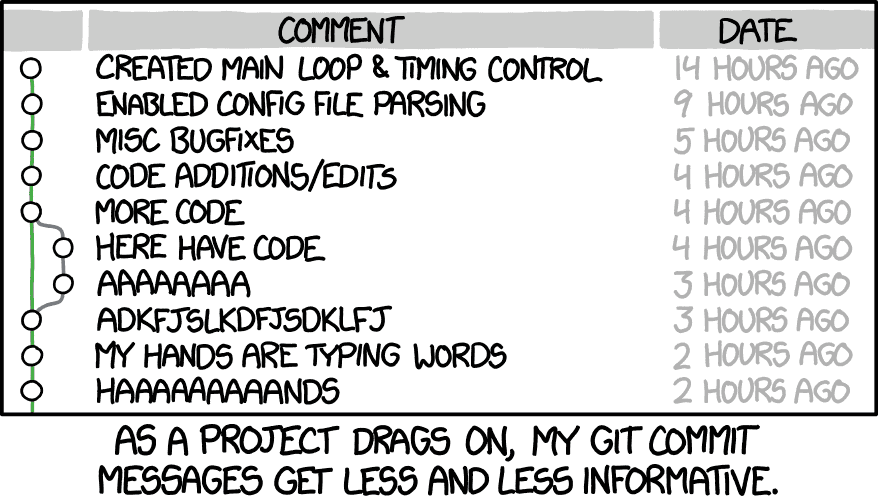
Introduction: When Commit Messages Go Wild
Before we dive in, let's acknowledge a reality many developers face: as projects drag on, our commit discipline tends to deteriorate. As the comic illustrates, we might start with informative messages like "Created main loop & timing control" but eventually devolve into "AAAAAAA" and "MY HANDS ARE TYPING WORDS."
This decline in commit quality is precisely why understanding Git's internal mechanisms becomes so valuable. Even when our commit messages fail us, Git's underlying systems like reflogs can help us recover our work and understand our project's evolution.
Reflogs: Your Safety Net
While Git's commit history records the evolution of your project, reflogs record the evolution of your references (branches, HEAD, etc.). Think of them as "Git's Git" - they track how your repository references change over time.
What Reflogs Track
Reflogs record when references like branches or HEAD change, storing:
- The previous and new value of the reference
- Who made the change
- When it happened
- Why it happened (the command used)
Every Git reference (HEAD, branches, etc.) has its own reflog, stored in:
.git/logs/HEADfor the HEAD reflog.git/logs/refs/heads/<branch-name>for branch reflogs
Why Reflogs Matter: Recovering "Lost" Work
Reflogs provide a safety net for many common mistakes:
- Accidental branch reset: If you force-push or reset a branch, the reflog remembers where it was before.
- Detached HEAD commits: Created a commit while in detached HEAD state and lost it? Reflog remembers.
- Rebase gone wrong: If a rebase causes issues, reflogs can help you find your pre-rebase state.
As illustrated in our comic, when your commit discipline breaks down into "AAAAAAA" and "HAAAAAAAANDS," reflogs can help you piece together what actually happened.
Working with Reflogs
To view the reflog for HEAD:
git reflog
This produces output like:
734713b HEAD@{0}: commit: Fix bug in login form
82f5d1c HEAD@{1}: commit: Add user authentication
4ad3ff9 HEAD@{2}: pull: Fast-forward
...
Each entry shows:
- The commit hash
- The reference with a time index (e.g.,
HEAD@{0}is the current state) - The action that caused the reference change
- A description (usually the commit message)
To view a specific reference's reflog:
git reflog show main # Show reflog for the main branch
To recover "lost" commits:
# First, find the commit in the reflog
git reflog

# Then, create a branch at that commit or checkout directly
git branch recovered-work HEAD@{5}
# or
git checkout -b recovered-work HEAD@{5}
Reflog Expiration
Reflogs don't last forever:
- By default, reflog entries expire after 90 days. F
- Entries for unreachable commits expire after 30 days
- These settings can be configured in your Git config
Garbage Collection: Keeping Git Tidy
As you work with Git, you create objects that eventually become unreferenced:
- Commits that were reset or amended
- Blobs from files that were modified
- Objects from branches that were deleted
Git's garbage collection (GC) process cleans up these unreferenced objects to save space.
When Garbage Collection Happens
Git runs garbage collection:
- Automatically during certain operations when thresholds are met
- When you manually run
git gc - When you push to a remote (on the server side)
The Garbage Collection Process
When Git runs garbage collection:
- Loose objects are packed into packfiles for efficiency
- Unreferenced objects that are older than the grace period are removed
- Redundant packfiles are consolidated
- Reflog entries past their expiration are pruned
You can trigger garbage collection manually:
git gc                  # Normal collection
git gc --aggressive     # More thorough (but slower) collection
git gc --prune=now      # Remove all unreferenced objects immediately
The Safety Period
Git doesn't immediately delete unreferenced objects. By default:
- Objects remain in the repository for at least 2 weeks
- This grace period ensures reflogs can still reference "lost" objects
- After this period, truly unreferenced objects are candidates for removal
This safety period is why you can often recover "lost" work even after operations like reset or rebase.
Hands-on Exploration: Peering Into Git's Internals
Now let's explore these concepts with practical commands. Like the comic shows, sometimes the best way to understand Git is to get your hands dirty!
Examining Git Objects
To inspect any Git object:
git cat-file -p <object-hash>  # Print the object's contents
git cat-file -t <object-hash>  # Show the object's type
For example, to see your latest commit:
git cat-file -p HEAD
To look at the tree referenced by that commit:
git cat-file -p HEAD^{tree}
Exploring the .git Directory
The .git directory contains all of Git's internal data:
ls -la .git/          # List everything in the .git directory
ls -la .git/objects/  # See loose objects and packfiles
ls -la .git/refs/     # Explore branch references
ls -la .git/logs/     # Find the reflogs
To see if objects are packed or loose:
git count-objects -v
This command shows statistics about your repository's objects:
count: Number of loose objectssize: Size of loose objects (in KB)in-pack: Number of objects in packfilessize-pack: Size of packfiles (in KB)
Reflog Archaeology
To dig into your repository's history through reflogs:
# View all operations affecting HEAD in the last 2 weeks
git reflog

# Look at a specific branch's reflog
git reflog show main

# Get more details about reflog entries
git log -g --date=relative

# Find all commits, even those not referenced by branches
git fsck --unreachable
Just like in our comic where commit messages deteriorate over time ("MORE CODE" → "HERE HAVE CODE" → "AAAAAAA"), your reflog might reveal actions you forgot taking when you were in the depths of coding.
Simulating Object Cleanup
To understand what Git's garbage collection would remove:
# Show objects that would be pruned, without removing them
git prune --dry-run

# Show what git gc would do
git gc --dry-run
Practical Scenarios: When These Tools Save Your Day
Scenario 1: Recovering from Bad Rebase
Imagine you've rebased a branch and realized it was a mistake:
# Find the pre-rebase state in the reflog
git reflog
# Example output: abcd123 HEAD@{5}: checkout: moving from main to feature

# Restore the branch to its pre-rebase state
git reset --hard abcd123
Scenario 2: Finding a "Lost" Commit
Like our comic's "MY HANDS ARE TYPING WORDS" commit that you might want to revisit:
# Search reflog for commits with specific content
git reflog | grep -i "typing words"

# Or, look at all commits not reachable from any branch
git fsck --no-reflogs --unreachable | grep commit
Scenario 3: Repository Optimization
For large repositories with long histories (perhaps full of nonsensical commits like in our comic):
# Comprehensive cleanup and optimization
git gc --aggressive --prune=now

# For even more thorough optimization
git repack -a -d --depth=250 --window=250
Best Practices: Maintaining Repository Health
- Regular Maintenance: Run
git gcperiodically on large repositories - Meaningful Commits: Unlike the comic, try to maintain informative commit messages
- Backup Reflogs: Before major operations, consider backing up
.git/logs/ - Custom Expiration: Configure reflog and GC expiration times based on your project needs:
# Keep reflogs for 1 year
git config --global gc.reflogExpire "1 year"

# Never expire unreachable objects (careful, uses more disk space)
git config --global gc.pruneExpire "never"
Key Git Commands for Reflogs & Garbage Collection
Viewing & Recovering Lost Work
bash
CopyEdit
git reflog                         # View reflog history
git log -g                         # Show detailed reflog history
git checkout -b recovery HEAD@{5}  # Restore a lost commit
git fsck --unreachable             # Find unreachable commits
git rev-list --all --objects | grep "<filename>"  # Find lost files
Cleaning & Optimizing Git Storage
bash
CopyEdit
git gc                             # Standard garbage collection
git gc --aggressive                # Thorough cleanup (⚠️ Slow for large repos)
git gc --prune=now                 # Remove all unreferenced objects immediately
git prune --dry-run                # Preview objects to be removed
git count-objects -v               # Show repo size & object counts
Configuring Git Maintenance
bash
CopyEdit
git config --global gc.auto 500           # Run GC after 500 loose objects
git config --global gc.reflogExpire "90 days"  # Set reflog expiration
git config --global gc.pruneExpire "14 days"   # Set unreferenced object expiration